
Attributes & Variants
Where: Inventory → Attributes & Variants and Inventory → Variants StudioWho: manager or tenant owner
Attributes are the option axes a product can vary on — Size, Color, Dough type. Variants are the resulting sellable combinations — Pizza / Medium / Thin. Together they turn one product row into a proper option-driven item.
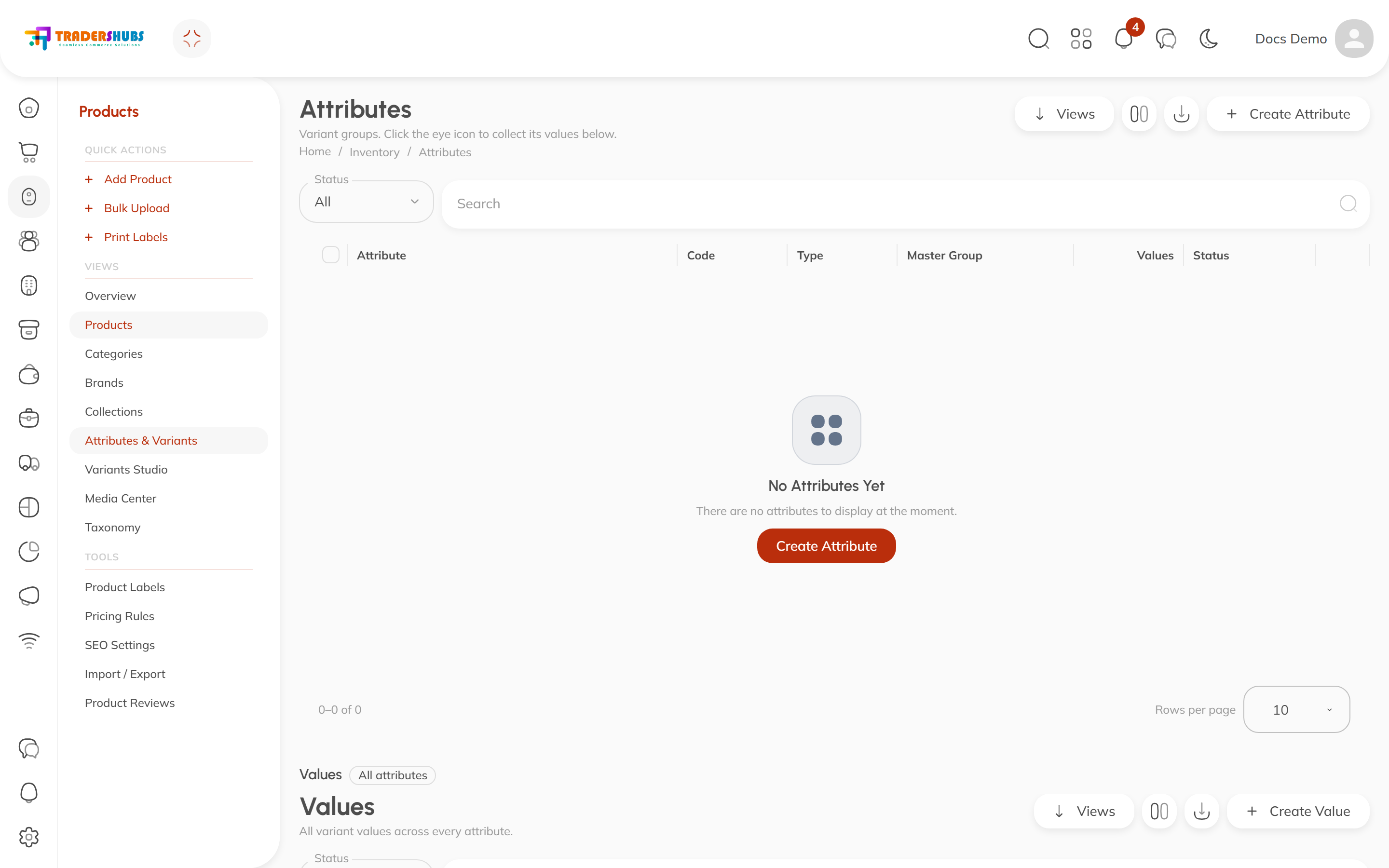
Step 1 — define attributes
The Attributes page has two tables:
- Attributes (top) — each group: name, code, type, optional Master Group, and how many values it holds.
- Values (bottom) — every option value across every attribute. Click the eye icon on an attribute row to filter the values table to just that group.
- Click Create Attribute → name it (Size), pick a type.
- Click Create Value on its row (or in the Values table) → add each option (Small, Medium, Large).
Step 2 — build variants on a product
Open Variants Studio (or a product's Variants Studio shortcut):
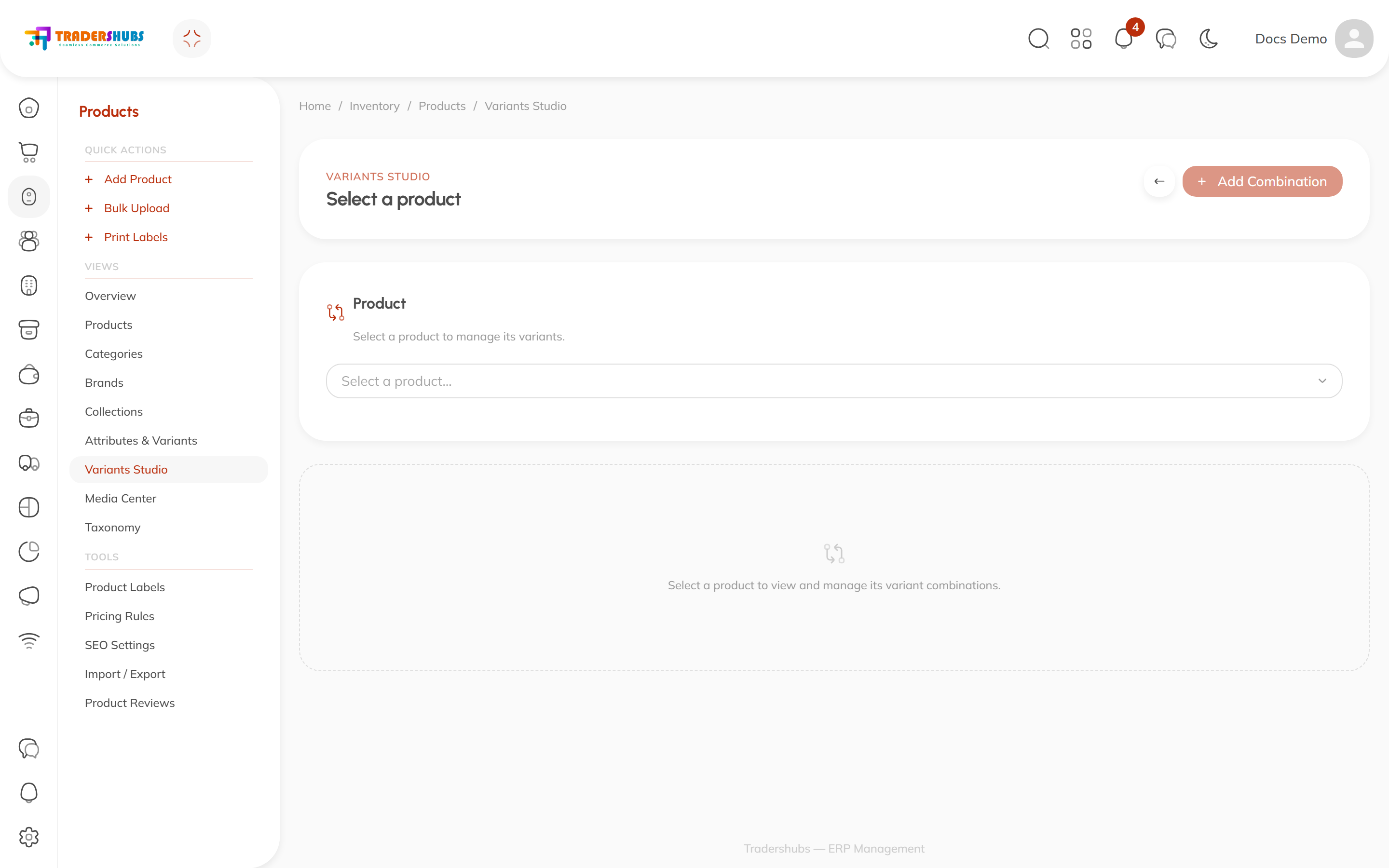
- Select a product.
- Click Add Combination and pick the attribute values that make the variant (e.g. Medium + Thin).
- Each combination is its own sellable variant — it can carry its own price and stock.
Good to know
- Only products that need options need variants — Hummus is fine as a single product; Pizza isn't.
- Variant prices override the base product price where set.
- The POS shows variants when a cashier taps a product that has them.
Troubleshooting
- A product shows no variants — its attribute combinations aren't built yet; the attribute existing isn't enough — the product must have combinations in Variants Studio.
- Can't find the value you need — create it in the Values table first, then it appears when adding a combination.