
Categories
Where: Inventory → CategoriesWho: manager or tenant owner
Categories are your catalog's fixed organization — Pizza, Salads, Desserts. Every product gets one category, and it's the main way both your team and your customers navigate the catalog.
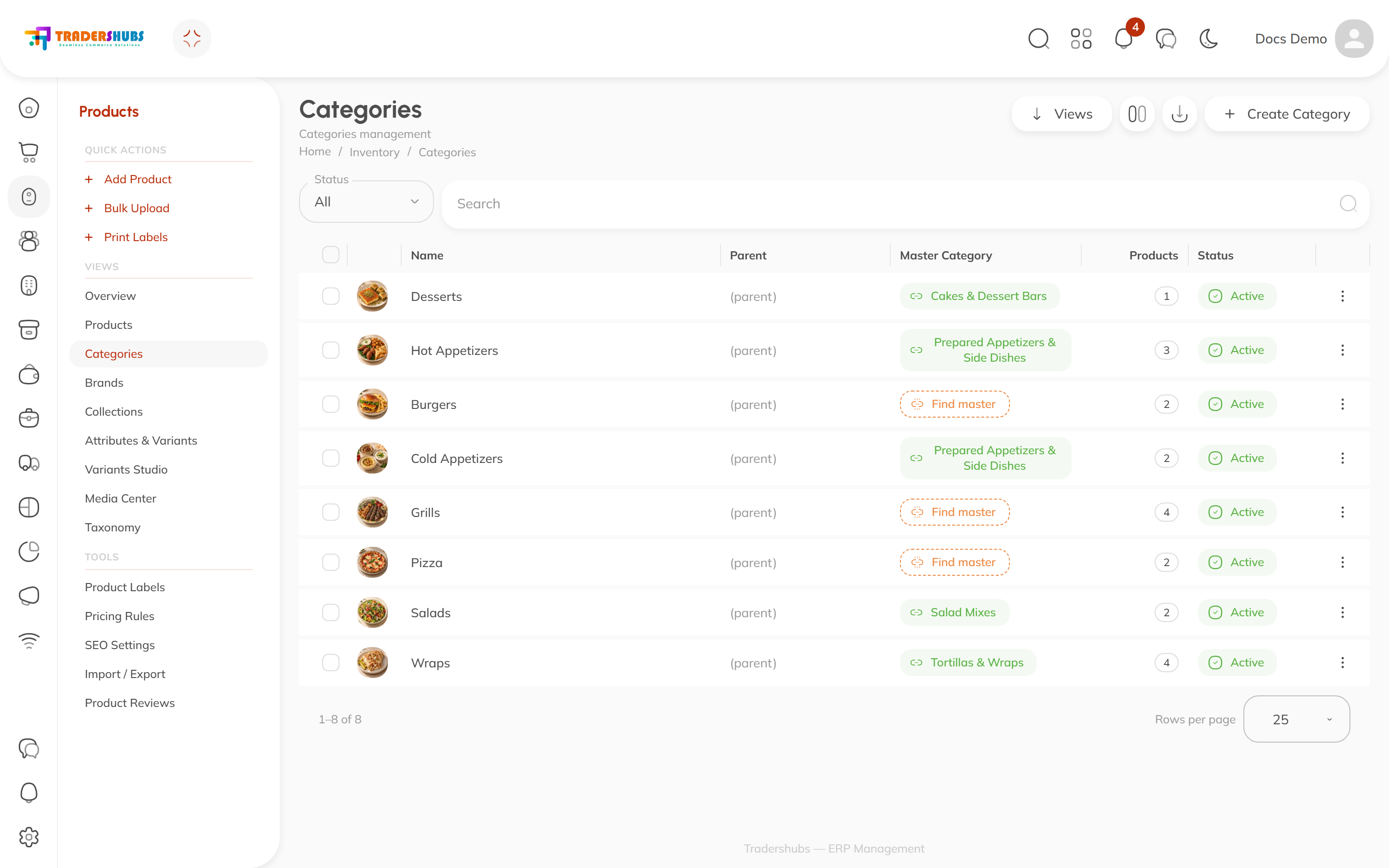
Creating a category
- Click Create Category.
- Give it a name and an image — the image is what customers see.
- Optionally pick a Parent to nest it (e.g. Pasta under Mains).
- Link a Master Category (see below).
- Set it Active.
Master categories (Taxonomy)
Each of your categories can be linked to a master category — a global, standardized product taxonomy shared across Tradershubs (the Master Category column, e.g. Desserts → Cakes & Dessert Bars).
- Why bother: master categories make your products understandable to channels and analytics beyond your own naming, and they're required for some integrations.
- Unlinked categories show a Find master shortcut in the table — click it to pick the closest match.
- The Taxonomy page lists every master category currently in use by your catalog.
Good to know
- A product belongs to one category. Need flexible, overlapping groups? That's what Collections are for.
- Categories can be nested — set a Parent to build a tree.
- Deleting a category doesn't delete its products — they just become uncategorized until you reassign them.
- Category images matter — they may appear on the storefront and in category-based POS collections.
Troubleshooting
- A category isn't showing products — check the products actually have that category assigned on their Basic tab.
- "Find master" keeps appearing — the category isn't linked to the global taxonomy yet; click it and pick a match.