
Managing devices
Where: Settings → POS DevicesWho: Manager or tenant owner
This page is mission control for every till in your business — and every pairing code in flight.
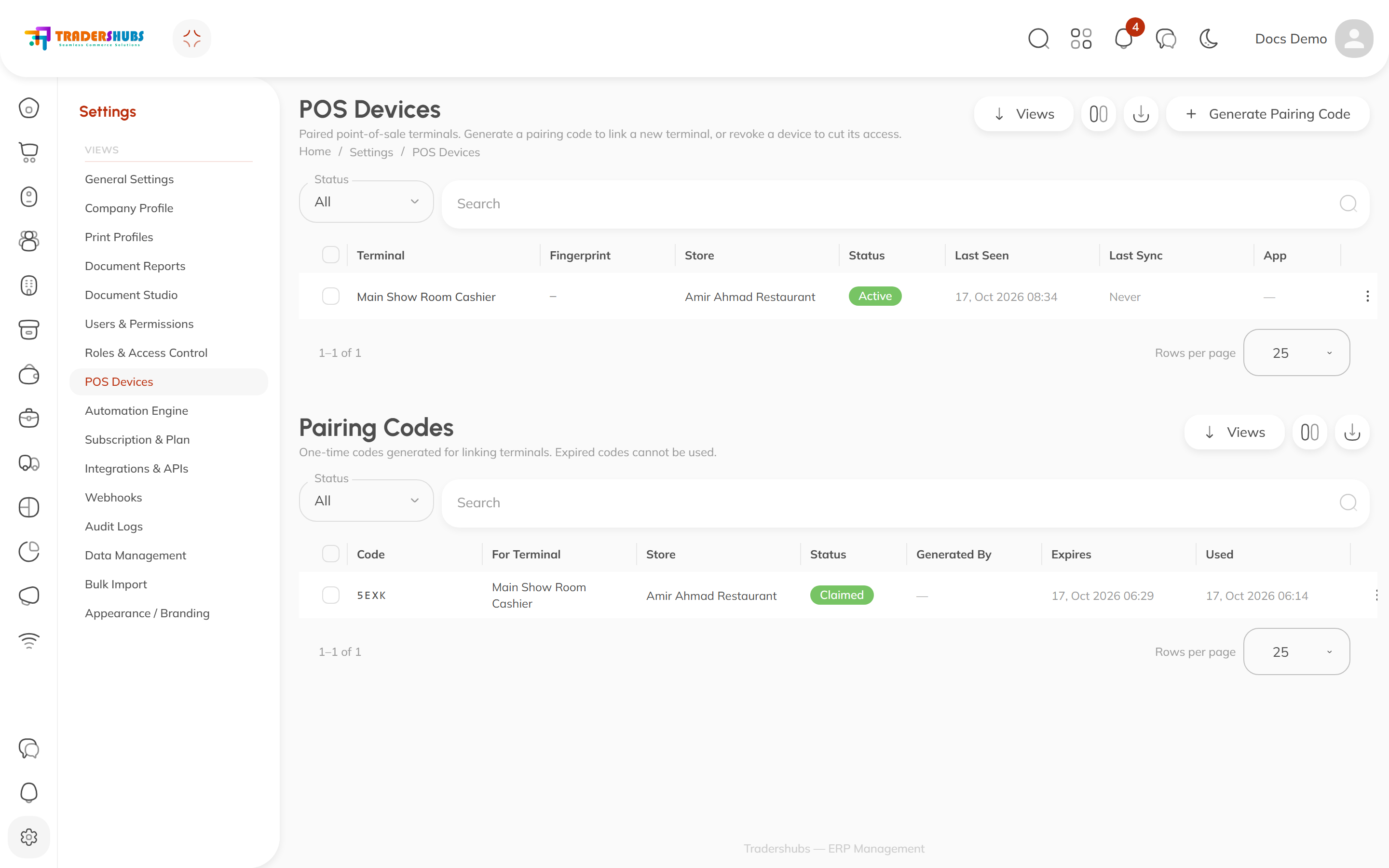
The Devices table
| Column | Meaning |
|---|---|
| Terminal | The name you gave it at pairing ("Front Counter") |
| Store | The store it serves |
| Status | Active — paired and working · Inactive — paired but disabled · Revoked — cut off |
| Last seen / Last sync | When it last talked to the server — your "is this till alive?" check |
| App version | Which POS release it's running |
Revoking a device
Lost the tablet? Staff member left? Replaced the till?
- Find the device in the table → open the row actions
⋯→ Revoke (or select rows and use the bulk action). - The terminal is immediately cut off — its credentials stop working, no data leaves the account through it anymore.
Revoking does not wipe the device — it kills its access. To reuse the machine, pair it fresh with a new code.
Reactivating
A revoked or inactive device can be brought back with Reactivate — same menu. Useful for a seasonal till.
The Pairing Codes table
Below devices, every code ever generated is listed: target store, status (Pending, Claimed, Expired, Revoked), who generated it, and its expiry. Only the code hint is stored — the full code is shown once at generation and never again.
Good to know
- Give terminals memorable names at pairing time — "Till 3" beats "WIN-9X4KQ2".
- A device that hasn't synced in a while (check Last sync) may simply be offline — not broken. See Working offline & sync.